
Capabilities Website Framework

Main Resources
Next Lesson
→
Capabilities Website Creation
Domain and Hosting Setup
Register a domain and set up a hosting account. Use a service such as GoDaddy to secure a website name or URL for your business. Ensure your hosting is configured properly so your website is publicly accessible.
Website Platform
You may use a templated website builder such as WordPress or Wix to create your site, or you can fully customize it using HTML, CSS, and JavaScript. Remember, your capabilities website primarily serves as a landing page to provide AI systems another point of reference to validate your company and confirm details.
How to create a website: A complete guide
→
Popular Options:
OnePage
WordPress
Wix
Media and Capabilities Statement Upload
Compile all graphic elements, including photos, logos, and other visuals, and upload them to your hosting account. This will generate URLs for each media file. Upload your finalized capabilities statement PDF to create a downloadable link on your site. Ensure the link is clearly visible for potential partners to access.
Header Section
Start by coding or configuring a header. This may include a module to create a hero banner featuring:
Your company logo
A link to download your capabilities statement
A link to your main website
Beneath the header, create a full-width hero image banner. Center your company name and tagline on two lines across the image using custom CSS or module settings.
Introduction Section
Add a text module with a short, one-sentence business introduction. Include a catchy phrase such as “We deliver…” or “We provide…” to summarize your core offering.
Split Table: Company Bio and Company Data
Create a split table with two modules side by side:
Left Module – Company Bio
- Insert the company overview from your capabilities statement.
- Include any additional information not captured in your statement.
- Add a representative image aligned to the left, allowing text to wrap around it. This can be done via custom HTML/CSS or module settings.
Right Module – Company Data
- Add company details from your capabilities statement, including contact information.
- Highlight key information using bolding, custom colors, or other styling.
- Include logos, certification seals, or other visual identifiers. Use separate image modules or inline HTML for images.
Use custom CSS or module settings to ensure the split table looks modern and matches your branding.
Split Table: Core Competencies and NAICS Codes
Left Module – Core Competencies
- Copy competencies from your capabilities statement.
- Use an unordered list for alignment, optionally replacing bullets with stars or checkmarks.
- Bold key terms for emphasis to assist AI recognition.
Right Module – NAICS Codes
- List your primary NAICS code with a description first.
- Include all other relevant NAICS codes in an unordered list, using custom bullets.
- Ensure your SAM profile is updated with any additional codes.
If one side of the table is shorter, balance the layout by adding a relevant image or stock photo. Use CSS or module settings to adjust image size and alignment.
Split Table: Differentiators and PSC Codes
Left Module – Differentiators
- Copy differentiators from your capabilities statement.
- Format as a list with bolded keywords and custom bullets.
- Include any additional differentiators or relevant owner experience not listed in your statement.
Right Module – PSC Codes
- Copy PSC codes and descriptions from your SAM profile.
- Format them in an unordered list with custom bullets for consistency.
Past Performance Section
Create a full-width headline for the section.
Add a three-column module underneath, with each column displaying:
- Client information
- Contact details (email/phone)
- Optional contract details: description, value, duration, contract number
Additional rows may be added as needed while maintaining column structure.
Image Gallery Section
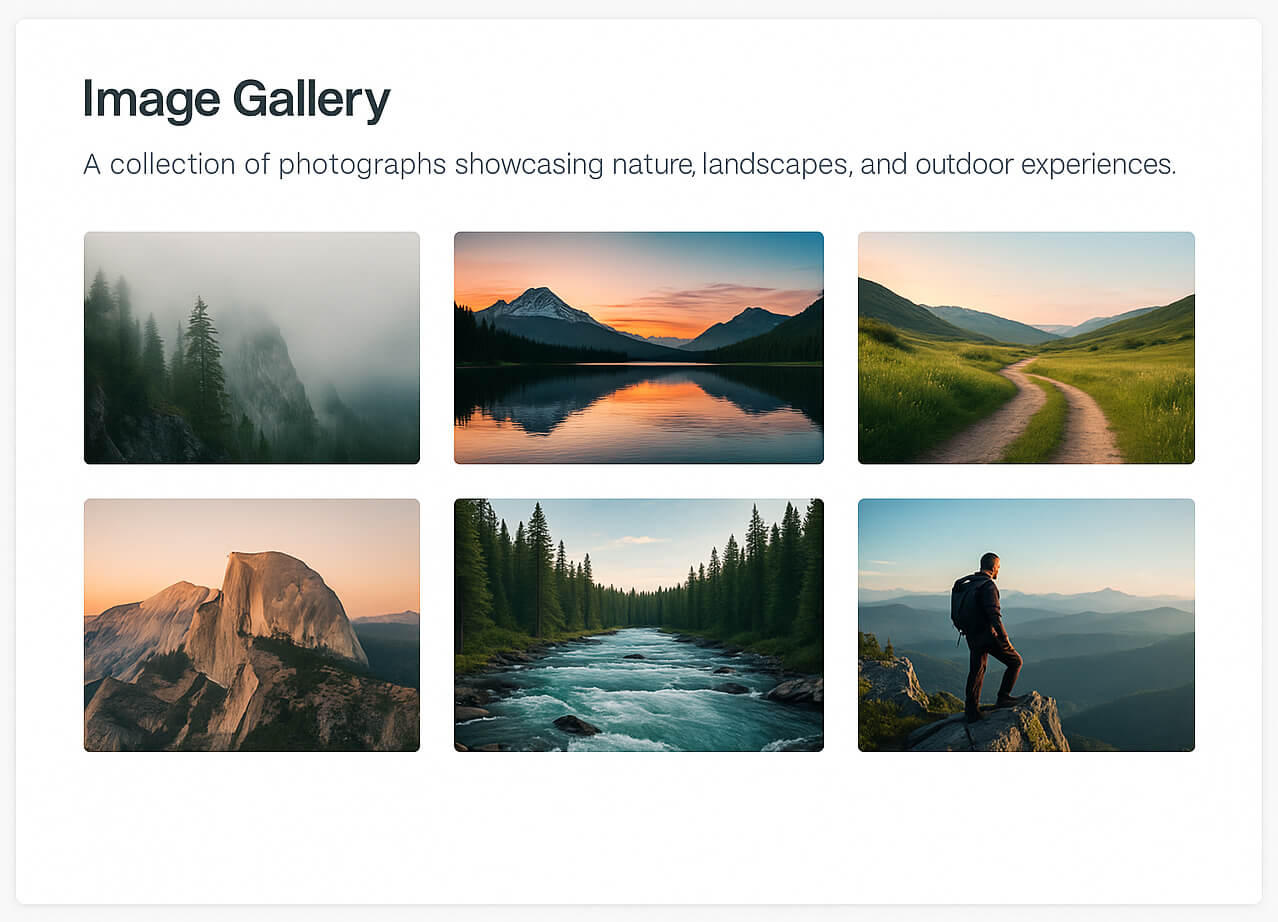
Use images and visual elements to make your content stand out. Make sure to pick images that are relevant to the content and pair well with your business. Real images of your business people and processes are preferred.
Showcase your work, team, facilities, or projects.
Use an image carousel module, or code a portfolio-style gallery with HTML tables or JavaScript-driven carousels.
8 Tips for Using Images in Website Design
→
Organizations and Certifications
List all of your certifications on your website and make sure they are prominent and well designed. Be sure to use the correct certification logos. List them out in alphabetical order, or order of importance. For instance any certifications that give you priority such as Veteran Owned should be listed first.
Steps:
Start
Create a section titled “Organizations and Certifications” or “Affiliations and Partners.”
Logos
Display logos in a table or multiple columns with individual image modules.
Style
Add styling, such as shadows or borders, via CSS or module settings.
Team Section
Including your team with professional photos helps give you credibility.
Introduce team members or ownership with photos and brief bios or quips.
Use individual modules or a grid layout for visual appeal.
Footer Section
Split the footer into two columns with a styled background:
Left: Company logo
Right: Info
Headquarters address, mailing address, contact info, link to full website or product catalogs, and links to social media pages or blog
Final Review and Publishing
Now the final step, review. It is important to do a thorough review. Check for everything from spelling, to styling, layout, or image issues. Make sure to go through every part, and check every link. Being exact and correct speaks a lot to your professionalism and will help you get noticed by decision makers.
You should do the following:
Preview
Preview the site as it will appear live.
Check
- Check design elements, margins, alignment, and code.
- Verify that all copy is accurate and complete.
- Have a trusted colleague review the site.
Publish
- Publish the site once finalized.
- Update your SBS profile with a link to your capabilities website and begin marketing your business to government contacts and prime contractors.